How to Install an SSD
Upgrade to solid-state storage for faster performance
 Sarah Kim Updated 2025-11-10 15 min 6 steps
Replace your old hard drive with a lightning-fast SSD. This guide covers M.2 NVMe and 2.5-inch SATA installations.
15 min
Time Required
$50 – $150
Estimated Cost
6
Steps
low
Safety
What You'll Need
Tools
Materials
Step 1 of 6
Choose the Right SSD
Determine which type your system supports. M.2 NVMe drives are fastest (up to 7,000 MB/s) and plug directly into the motherboard. 2.5-inch SATA drives are more universal but slower (up to 550 MB/s). Check your motherboard for M.2 slots.
Tip
For most users, a 500GB or 1TB NVMe SSD offers the best value.
Step 2 of 6
Power Down and Open the Case

Shut down completely. Unplug the power cable. Press the power button to discharge. Remove the side panel. Ground yourself by touching the metal case.
Warning
Always disconnect power before working inside your computer.
Step 3 of 6
Install the M.2 Drive
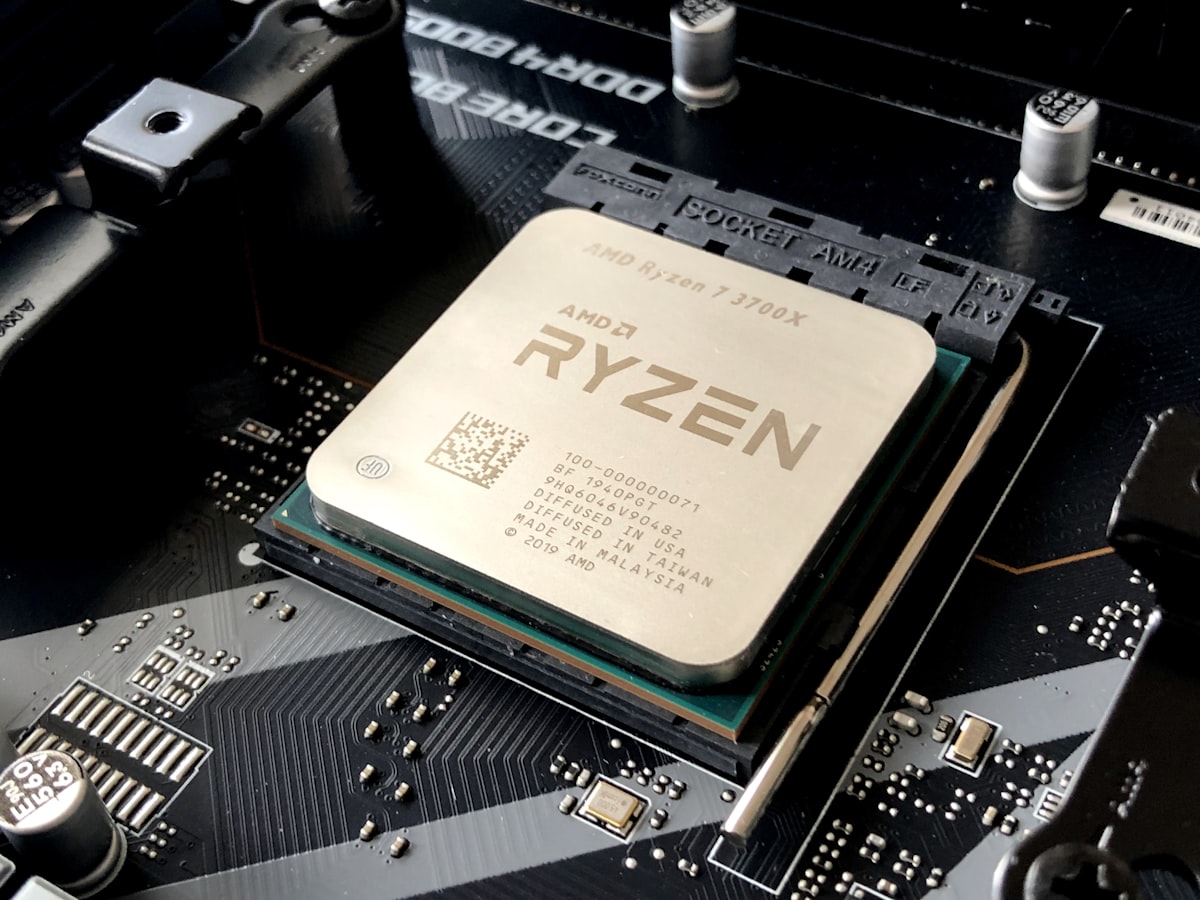
Locate the M.2 slot on your motherboard. Remove the mounting screw. Insert the drive at a 30-degree angle into the slot. Press it down flat and secure with the screw. For SATA: connect the data and power cables to the drive and mount it in a drive bay.
Common Mistake
Inserting the M.2 drive at the wrong angle or in the wrong slot. The notch should align with the key.
Step 4 of 6
Close Up and Boot

Replace the side panel, reconnect all cables, and power on. Enter BIOS to verify the new SSD is detected. You should see it listed in the storage devices section.
Step 5 of 6
Install or Clone Your OS
If this is your boot drive, install a fresh copy of your operating system using a USB installer. Alternatively, clone your existing drive using free software like Macrium Reflect or Clonezilla.
Pro Tip
A fresh install always performs better than cloning, but cloning saves time if you have a lot of data.
Step 6 of 6
Verify Performance

Once your OS is installed, run a benchmark tool like CrystalDiskMark to verify your SSD is performing at rated speeds. You should see dramatically faster boot times and application launches.
Tip
Enable TRIM support in your OS to maintain SSD performance over time.